Modeling in diagrams
Use diagrams to turn repository data into a focused visual story. The goal is not to draw everything. The goal is to answer a question clearly.
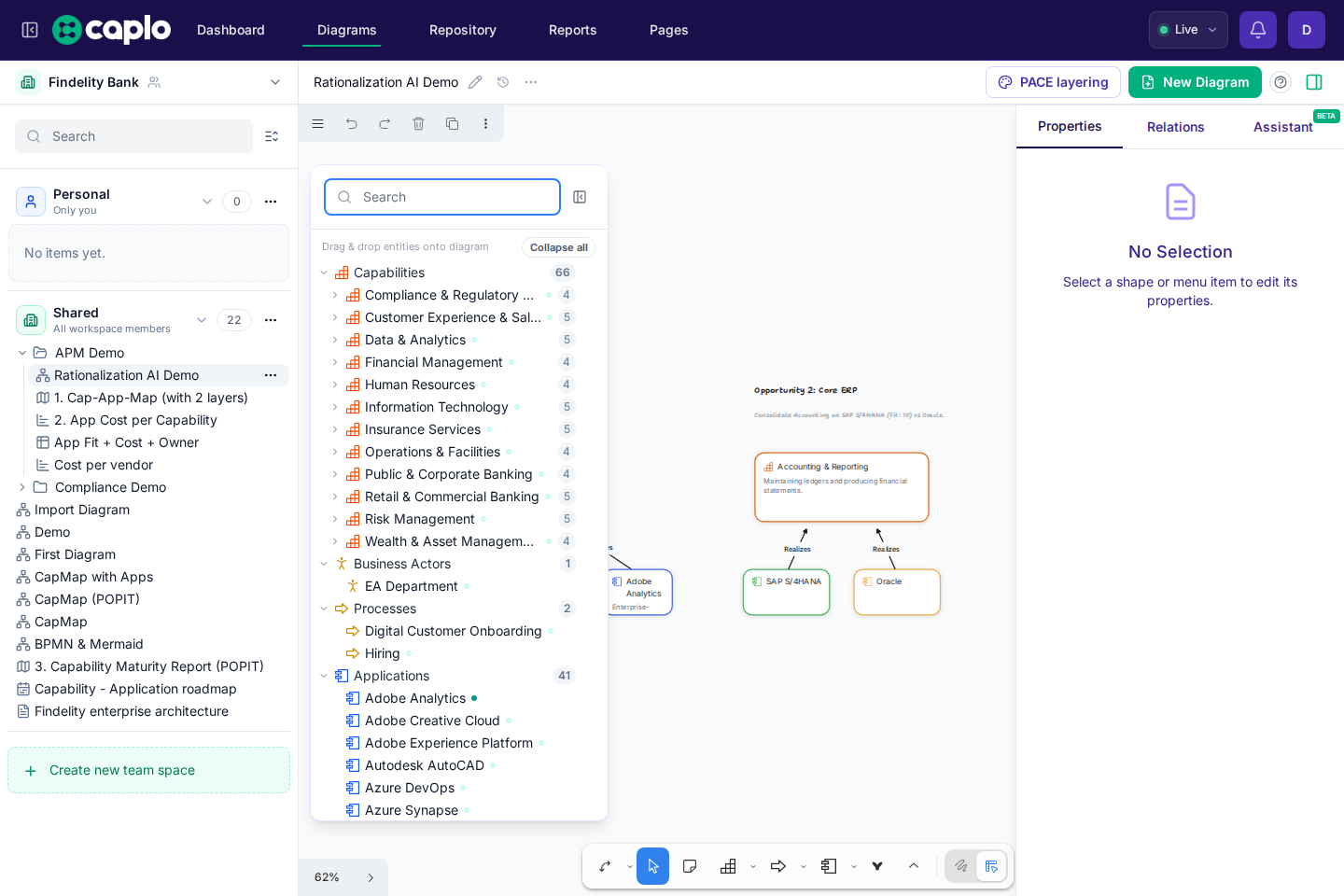
Create architecture shapes
In Architect mode, choose a shape type such as Application, Capability, Process, Data object, or Vendor. Use the type that matches the real-world object you want to model.
When the object should be reused, link it to a repository entity. If the entity already exists, reuse it. If not, create it from the diagram or add it later from the Repository.
Available shape types depend on your workspace settings. For more on enabled element types, see Meta model.
Process shapes and BPMN shapes
Processes are special in Caplo because one Process entity can be shown in two visual representations:
- a classic Process shape for normal architecture modeling
- a BPMN shape for detailed process flow modeling
Both representations point to the same linked Process entity.
That means a linked BPMN shape behaves like a normal Process shape for day-to-day modeling:
- you can draw arrows to and from it
- Caplo can create or reuse normal relations for it
- it stays the same Process in the repository, reports, and graph exploration
The same Process, and every other entity type, can also be shown as a document card. The card header shows the entity type icon and name. The border uses the shape color, which you can change from the style panel; that color stays when you switch back to the architecture shape. The body shows the entity's document with its headings, lists, and text styles, clipped to the shape. The preview updates as soon as the document is saved. Double-click opens the editor, which shows the same icon next to the name. Edits save about every 2 minutes, and also when you close the editor or hide the tab. A snapshot or a read-only draft holds an unsaved edit until you return to a view you can edit. Switching to a document card does not create the document until you save it. If the entity is later removed from the repository, the card stays on the diagram with a red dashed border and (deleted) after the name. See Entity documents.
Use the classic Process shape when you want a simple architecture node. Use the BPMN shape when you want to show the process flow itself. You can switch between the two representations from the contextual toolbar. Any linked shape can also switch to the document card, and back, from that toolbar. A shape that contains other shapes cannot switch until those children are moved out.
Edit names and properties
When you want to refine a shape directly on the canvas, edit its name inline. Double-clicking the label is the fastest way to do that for normal architecture shapes.
For full detail, select the shape or relation and use the right panel to edit properties, inspect related items, or open the linked entity detail page.
Link existing entities
Drag entities from the Repository overlay onto the canvas to reuse repository data. This is the safest way to avoid duplicate applications, capabilities, or processes.
If you type a name that closely matches an existing repository item, Caplo may suggest a match so you can connect the drawing to the right entity.
Create and reuse relations
Use arrows to show relationships between linked entities. When Caplo recognizes the connection as a reusable relation, it can create or reuse that shared relation for the workspace. Name each architecture shape before you connect an arrow or nest it. While you draw or drag an arrow, the canvas explains why at each endpoint that overlaps an unnamed shape. If you release a new arrow while an endpoint is still on an unnamed shape, Caplo removes that arrow.
While you drag an arrow endpoint (or a line vertex), Caplo gently snaps toward horizontal, vertical, and 45° diagonals when you are within about 5°. Hold Shift for the finer 15° snap if you need it.
Use relation names sparingly. A clear relation type is often enough, while extra names are useful for flows or connections that need a specific label. The relation type choices in the right panel, the canvas menu, and the relation dialog show the arrowheads for that type.
Child of and diagram-only grouping
Nesting shapes has meaning in Caplo. It is not only a layout trick.
- Same-type nesting creates or reuses a Child of relation.
- Nesting two different types creates a repository relation only for Child of, Aggregated by, or Accessed by. Other connections stay on the diagram.
- If the grouping is only visual, keep it diagram-only instead of using nesting to imply reusable structure.
The simplest way to keep grouping visual is to use Draw mode boxes, labels, and annotations when you only want framing or workshop structure.
Use nesting when the hierarchy or semantic relationship is intentional. If you only want layout, use a visual grouping technique instead of teaching the repository something untrue.
Approve AI-generated items
This mainly matters when the AI agent creates shapes that refer to entities that do not exist in the Repository yet.
Those shapes can appear on the diagram as linked but unapproved items, so you can review them in context before they become part of the shared model.
When you approve them from the diagram, those entities, and any linked reusable relations that were created with them, become part of the Repository.
Repository-created items are approved immediately, so this is not usually part of the normal manual modeling flow.
Auto-layout and containers
Some diagram structures can arrange themselves as you nest or group items. Auto-layout helps keep container-style diagrams readable, especially for landscapes and capability maps.
If a diagram needs manual storytelling layout, keep it simple and use spacing, grouping, and labels to guide the reader.
Select one or more shapes and use the contextual toolbar above the selection to turn auto-layout on or off for those containers.
Capability maturity on the canvas
Capability shapes can show a POPIT maturity assessment (People, Process, Technology, Information) and soft fitness coloring once all four dimensions are set. Caplo uses the same pastel fitness colors as landscape reports.
Turn on PACE layering and choose Capability fitness (POPIT), listed directly under As-is / to-be. That choice applies to every capability on the diagram. Other shapes keep their normal colors. Choose another source, or clear PACE layering, to hide the assessment and the fitness colors. For how As-is / to-be, phase dates, and empty defaults work, see As-is / to-be.