Drafts
Use a draft when you want to try a change — a planning scenario, a retirement, a target landscape — without changing what everyone else sees. You edit as usual. Those edits stay off the current live workspace until you publish.
Snapshots are a different tool: they let you browse the workspace as it was on a past date. They never include draft work.
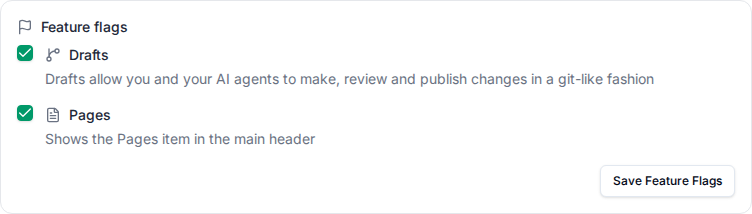
The drafts chip in the top-right navigation is on by default. A workspace admin can hide it under Settings > Feature flags. The flag only controls that chip; drafts still work from /drafts.
How a draft relates to the live workspace
A draft is not a copy of the workspace. It is an overlay: it stores only the objects you create, edit, or delete. Everything else is the live workspace.
While the draft is open you always see the live workspace plus this overlay.
If a teammate updates an item on the live workspace that this draft has not touched, that update is visible in the draft immediately. If this draft already changed that same item, the overlay wins until you publish or resolve a Conflict.
Diagrams and BPMN you actually edit keep a draft canvas until you publish. Unedited diagrams keep tracking the live workspace.
If you know Git
Caplo drafts are not Git branches.
A Git branch forks at a point in time. Later commits on main stay off the branch until you rebase or merge.
A Caplo draft never forks. It keeps tracking the live workspace and only records the objects you changed. Publish is closer to applying a patch than merging a branch: the whole overlay lands on live, or nothing does.
| Git branch | Caplo draft | |
|---|---|---|
| What is stored | A copy of the whole tree | Only the objects you changed |
| Later live edits | Hidden until rebase or merge | Visible unless this draft changed the same object |
| Combining work | Rebase or merge | Publish |
| Conflicts | Same lines in a file | Same object changed on both sides |
Create and switch drafts
Create a draft from the header drafts menu (New draft) or from the Drafts page (+). Every workspace member can do this, even with no live Create, Edit, or Delete permission. Give it a name and an optional description. Who can see and edit it is covered in Share a draft.
Open an existing open draft from the list to start working in it. To go back to the live workspace, choose Live workspace in the draft menu at the top right. Use the edit icon to start working in an open draft without opening its page. Each row shows how much changed, who created it, a reviewer when one is assigned, and a members or lock icon for access. Click the members icon to open draft access.
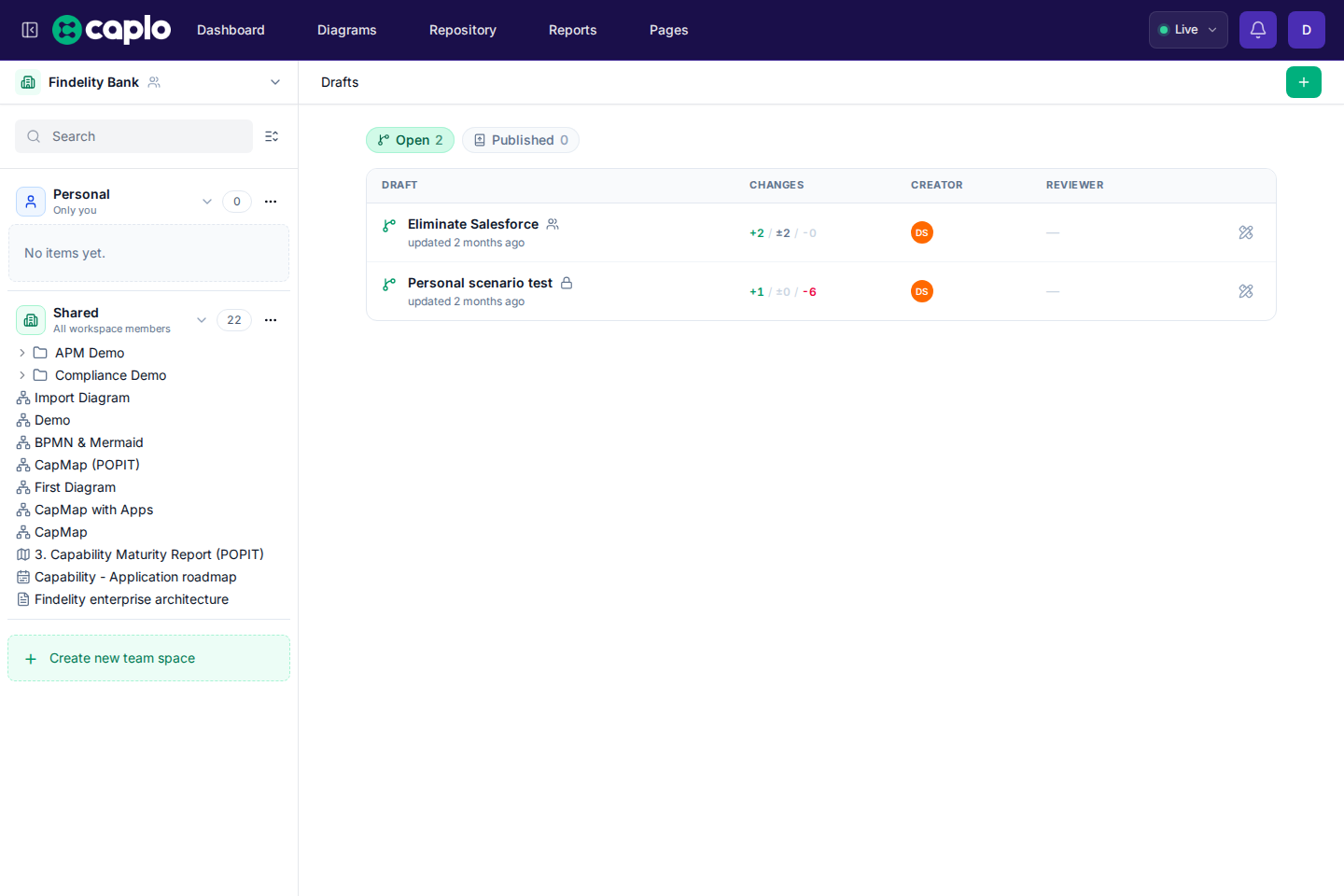
You can rename an open draft and change its description. Click the title or the description on the draft page, type, and press Enter (or click away) to save. Press Esc to cancel. Who can see it is set in draft access. Published drafts stay as a record and cannot be edited.
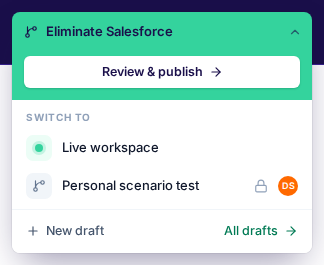
Opening an open draft starts working in it. The header chip shows where you are working: Live with a green dot, or the draft’s name on a teal chip. Click it to pick where to work. The chip unfolds into the menu. While you are in a draft, its teal top has Review & publish. Under Switch to, choose another draft, or Live workspace to leave the draft. You stay on the page you are on and see it in the version you picked. On a draft’s own page, picking another draft opens that draft’s page, and picking Live workspace opens the dashboard. The menu also has New draft and All drafts. Switching to another Caplo workspace also leaves the draft and shows that workspace’s current live version.
Work in a draft
While a draft is active you can create, edit, and delete the same overlay objects you would on the live workspace: entities, relations, diagrams, BPMN, reports, views, and folders. Those writes stay in the overlay. Creating a draft, or receiving write access on someone else’s draft, does not reveal live items you could not already view. Property definitions stay live workspace settings — editing them while a draft is open still updates the current workspace. Creating an entity with the same name and type as one deleted on the live workspace asks whether to restore it, just as it does outside a draft.
Overview shows a Draft strip under the workspace name so you know the tree is that overlay, not the live workspace alone. Click it to open the draft’s page. To go back to the live workspace, pick Live workspace in the header chip. Page breadcrumbs also show a Draft chip — for example Reports › Application Landscape then Draft “Q2 planning”. Click it to open the draft’s page.
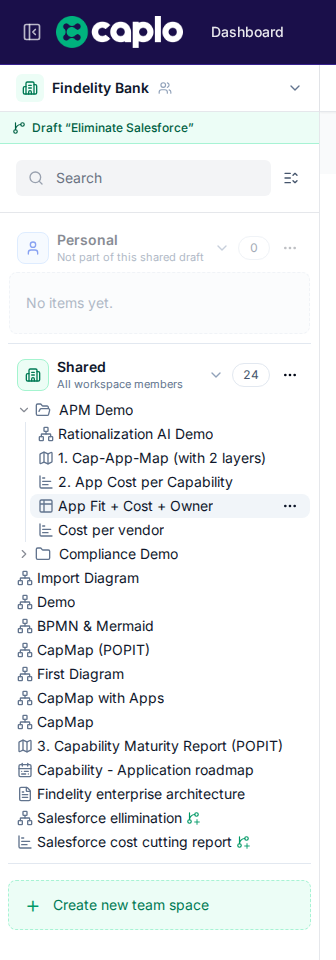

Items you create only in the draft appear in Overview while the draft is active. Items you change show an overlay icon next to their name.
History on an item includes the live versions and the versions on this draft. Restore writes the draft, not the live workspace. Restoring the live version drops that item from the draft’s change list. If you delete an entity or relation in the draft, it stays on diagrams with a warning until you restore it.
Personal or Shared
- Personal — only you and workspace admins see the draft. Use this to try something on your own. Other members cannot see it unless you grant them access.
- Shared — Everyone in the workspace can view it. Use this when someone else should review the work. To let someone edit it, give them Write on Share a draft. Workspace admins can still edit and publish any draft, including Personal ones. You can assign a reviewer on Shared drafts.
Shared drafts can only change Shared (workspace) items. You can still promote a Personal diagram, report, view, or folder to Shared while you work. Overview grays out Personal and labels it Not part of this shared draft. Save dialogs lock Team to Shared with the same reason. Opening a Personal diagram while that Shared draft is active shows a notice at the bottom of the canvas: it is read-only because the diagram is Personal.
To share a Personal draft, move or remove every Personal change first. Making a Shared draft Personal is always allowed. Only the creator of a Shared page, diagram, report, or view can move that item to Personal.
Review and discuss
The draft page is where you review the scenario before it goes live.
- Conversation — the description, the timeline of edits and comments, and who is reviewing it. The number is how many comments are still open
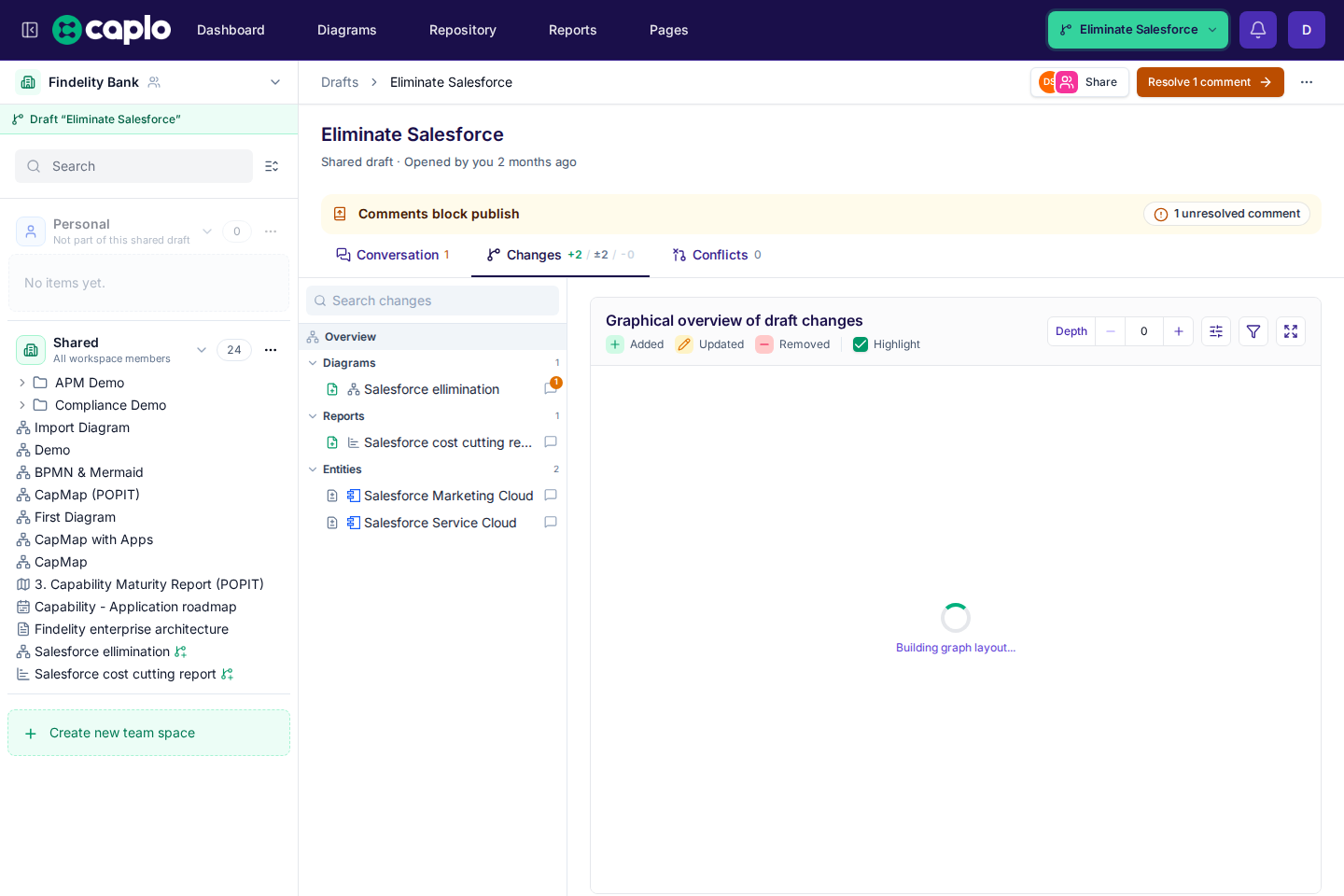
- Changes — a graph of what changed, followed by the full list of objects this draft would add, update, or remove. The badge is the same + added, ± updated, and − removed counts as on the drafts list
- Conflicts — every object that blocks publish. The number next to the tab matches this list
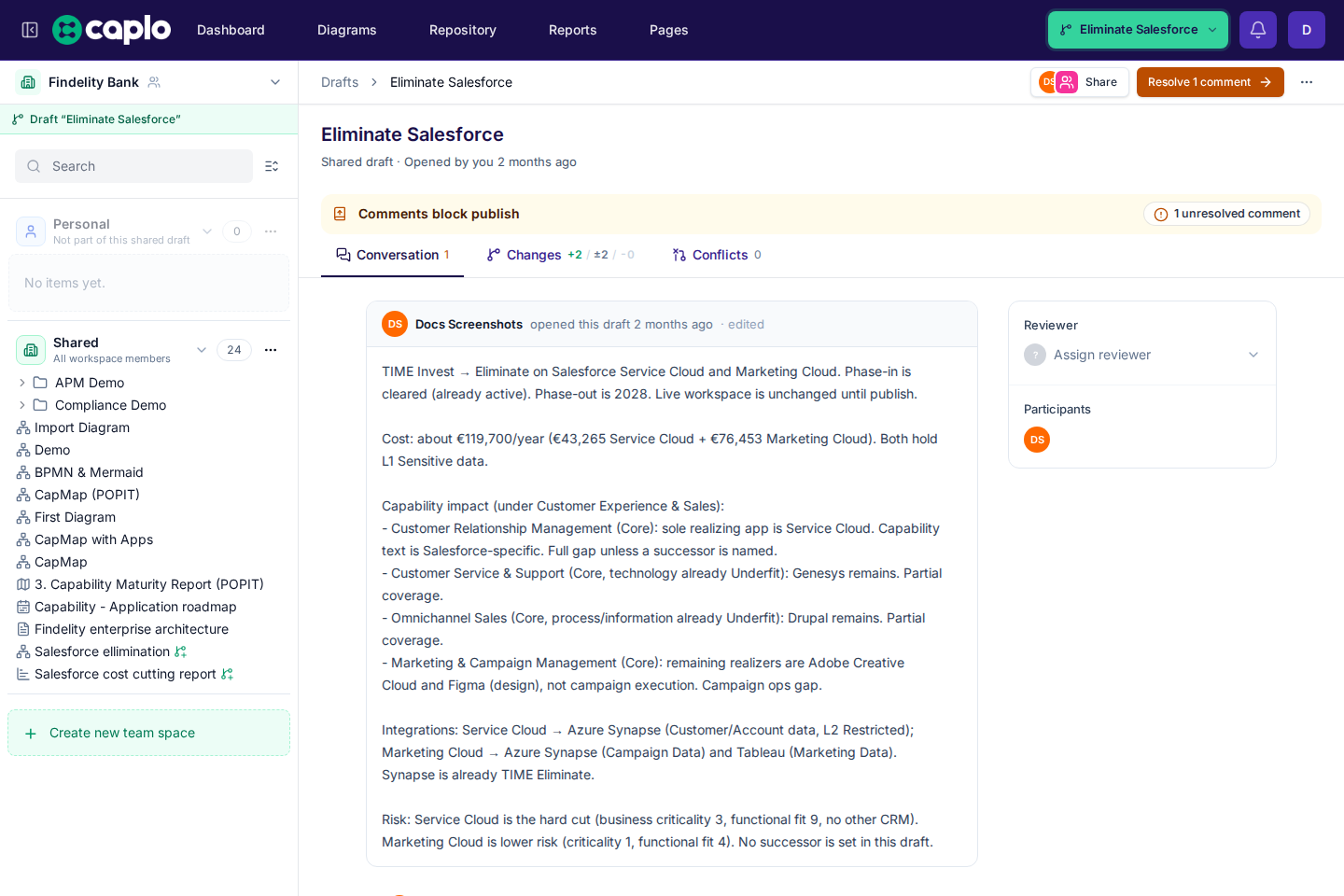
On Conversation the description is the opening post: who opened the draft, how long ago, and the text itself. You can edit that text in place, and the box grows to fit it. Below it is the timeline of edits and comments, and at the end a box to add a comment. A comment that still needs a resolution is marked in amber. The sidebar assigns a reviewer on a Shared draft. A Personal draft has no reviewer until you use Share. Participants are the people who own, commented on, or edited the draft. A strip under the title appears only while something blocks publish, and it does not repeat the change or conflict counts from the tabs.
When the draft changes entities or relations, Changes opens on Overview, a graphical overview of those items at the top of the list (depth 0). Scrolling over the overview moves the list. To zoom the graph, pinch on a trackpad or hold Ctrl (⌘ on Mac) while you scroll, or open it fullscreen. Items in that overview stack by ArchiMate layer, with strategy and motivation at the top and technology and physical at the bottom, and arrows generally point upward. Child of is shown by placing the child inside its parent, up to four levels, instead of as an arrow. Use the Depth control on the graph to add nearby connections one level at a time. Direction stays in Graph settings, and relation filters work the same way as on an entity’s Relations tab. Added, updated, and removed shapes are tinted green, amber, and red and marked with an icon. Changed relations use the same icons. A Highlight checkbox after that legend turns those tints off so the shapes use their usual colors. The icons stay. Hover an updated item’s icon to see which fields changed. Capability shapes in that overview stay in their usual colors, without fitness or PACE coloring. Open the overview fullscreen and select an item to see its Properties and Relations tabs. On an open draft you can edit those properties and relations; the changes are saved onto the draft. Double-click a shape to open that entity’s neighborhood, the same graph as Graph visualization. That entity is highlighted as the seed. The rest of the draft’s changes stay on the overview. If the overview is at depth 0, that graph opens at depth 1. Back and Forward appear beside Depth and step through the entities you opened, each at the depth it had. While the overview is fullscreen, you can create a diagram from the graph you are looking at, including a neighborhood opened from a shape. On a Personal draft that diagram is Personal. Inside a Shared draft it is Shared, because a Shared draft cannot hold Personal items. Child of links drawn as nested cards stay nested on that diagram. A published review stays read-only, so that action is unavailable. Close the fullscreen graph to return to the overview. Double-click a changed relation to close fullscreen and scroll to that relation in the list. Anyone who can see the draft can comment. You can attach a comment to a changed object. Share at the top right shows who can open the draft. Change it from Share a draft.
Below the overview, Changes lists changed objects on the left and stacks every change on the right. Overview stays at the top of the left column. The list can be long. Scrolling it selects the object in the left column, and choosing an object scrolls to it. Entities and relations show the fields that were removed and added. A relation does not repeat its name, arrow type, or approval, and the type is not repeated as a badge next to the name. When those lines are left out, muted text after the name says what changed. View full details opens the repository page for that object. A deleted entity, relation, diagram, or report is only that title row: the icon, the name, Deleted, and View full details. You can still restore a version onto the draft. Diagrams, BPMN, documents, reports, and pages show a preview of what the draft looks like, without a separate field list for diagrams and reports. A diagram preview does not capture scrolling, so the list keeps moving. A report uses its full height. A document keeps its headings, lists, and tables, and marks added and removed blocks. A page is shown in the same frame as on Pages. When the HTML changed, the previous page and the draft page sit side by side.
Resolve conflicts and publish
Publish writes the whole draft onto the live workspace, or nothing. Draft-only objects stay off the live workspace until that moment — they never appear as unpublished rows in the live repository. If someone changed the live workspace under one of your edits, or a name or relation already exists there, Caplo lists those objects on Conflicts. A diagram that still shows an entity or relation this draft deleted is valid — those shapes stay with a warning, the same as outside a draft.
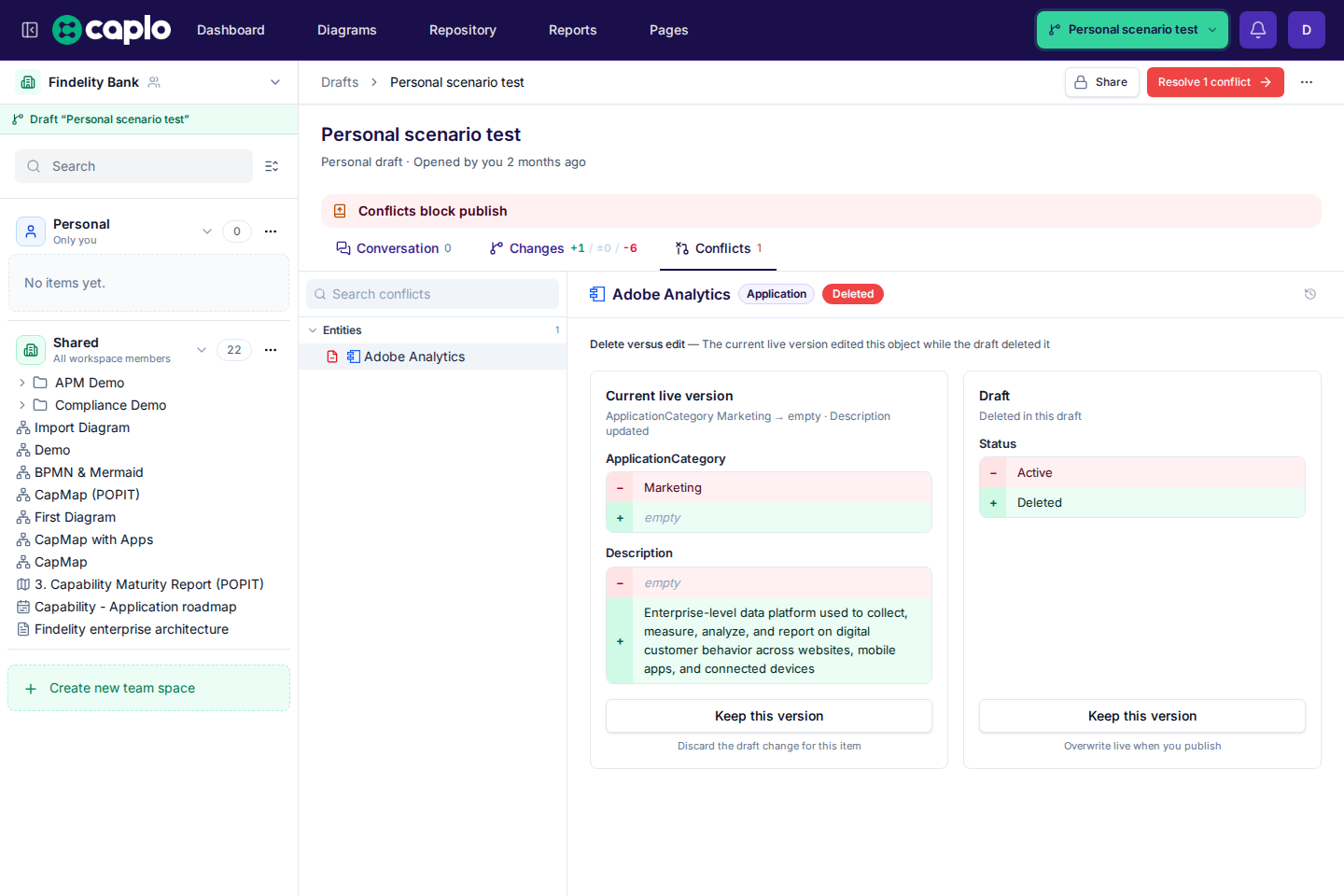
Each side lists the fields that were removed and added, the same way Changes does.
For each conflict you choose:
- Keep this version under Draft — keep your scenario. Publish later writes it onto the live workspace
- Keep this version under Current live version — drop that draft change
You can also edit the draft and try again. Resolving a conflict does not publish.
Use Publish at the top right of the draft page when there are no conflicts and every comment thread is resolved. When something blocks it, the button becomes the next step, for example Resolve 1 conflict or Resolve 2 comments, and takes you there. A comment blocker is amber. A conflict blocker is red. The strip under the title shows only while publish is blocked. If the conflict, comment, or change list is still loading or could not be loaded, that tab shows a spinner or an alert instead of an empty list, and Publish stays off. Publishing also needs Publish for every kind of change in the draft. Owning the draft or having Write on it is not enough. Everyone can publish by default. A workspace admin changes who can publish under Settings > Access control. See Choose who can change the live repository. After publish, each changed object gets one History row, and Dashboard Latest actions shows {draft name} was published. Draft versions stay on the draft and do not appear in snapshots.
Delete an unpublished draft to throw the scenario away: open the ⋯ menu at the top right and choose Delete draft. Caplo asks you to confirm first. Published drafts stay as the publish record.
Diagrams and BPMN you edit in a draft keep their own copy until you publish. Publish copies that drawing onto the live diagram and adds a Published row in History so you can view or restore it.
REST and MCP
You can create and update drafts, and edit entities, relations, BPMN, and entity documents inside a draft, from the public API or MCP. REST mutations must send exactly one write target (Caplo-Write-Target: main or Caplo-Draft-Id). MCP mutation tools already require draftId. Publish and delete stay in the Caplo UI.
Turning the Drafts flag off hides the top-nav drafts chip on the live workspace. Existing drafts stay editable from /drafts. Workspace copy copies only live data and asks you to confirm discarding drafts first.
See History and snapshots, MCP connections, and the Public REST API.