History and snapshots
Caplo keeps two kinds of history.
Per-item History belongs to one object. An entity, relation, diagram, BPMN process, entity document, saved report, or page has its own timeline.
Workspace snapshots are named versions of the whole workspace. Open one to browse the repository, diagrams, reports, and pages as they were on that date.
Use History to inspect or restore a single item. Use a snapshot when you want the workspace as a whole.
Per-item History
Each item is versioned on its own. Opening History on Azure DevOps shows only that application. Opening it on an entity document shows only that page. Restoring one does not change the other.
You can open History from:
- The History icon after the breadcrumbs on an entity or relation detail page
- The same icon in the right panel when an entity or relation is selected
- The diagram page header
- The BPMN editor header
- The document editor toolbar
- The Reports page header after the breadcrumbs on a saved custom report (viewer and editor)
- The page header on a page, next to Full screen
- A selected change on a draft review page
Folders and saved repository views have no History button on their native pages. On a draft you can still open History from a selected change. They still appear in a workspace snapshot.
Property definitions are live workspace settings. They have no History, they are not part of a draft overlay, and snapshots always display the current definitions.
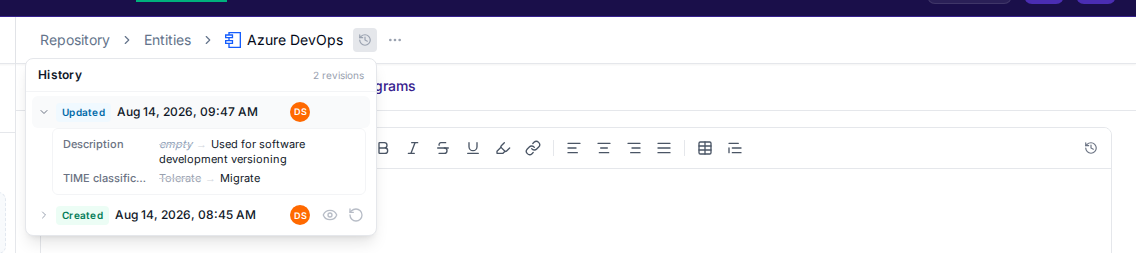
Browse, view, and restore
- Open the item and click History.
- Expand a row to see what changed.
- Click View on an older row for a read-only preview. The live item stays as it is.
- Click Restore to write that version onto the current live item.
Restore adds a new History row. Older versions stay, and the item keeps the same id.
While a draft is open, History includes the live versions of that item plus the versions on this draft. Restore writes the draft, not the live workspace. Restoring the live version drops that item from the draft’s change list.
View does not change the live item. Restore does. After a restore, Caplo closes any historic preview so you see the live item again.
Workspace snapshots
A workspace snapshot records the whole workspace at a moment in time, including entities, relations, diagrams, BPMN processes, reports, pages, folders, and saved views. Property definitions are live settings, so a snapshot still shows their current definitions. On a page, the layout is the one saved in that snapshot, and the figures follow the repository as of that snapshot. See Pages.
Open Settings > Workspace snapshots to create, view, or delete them.
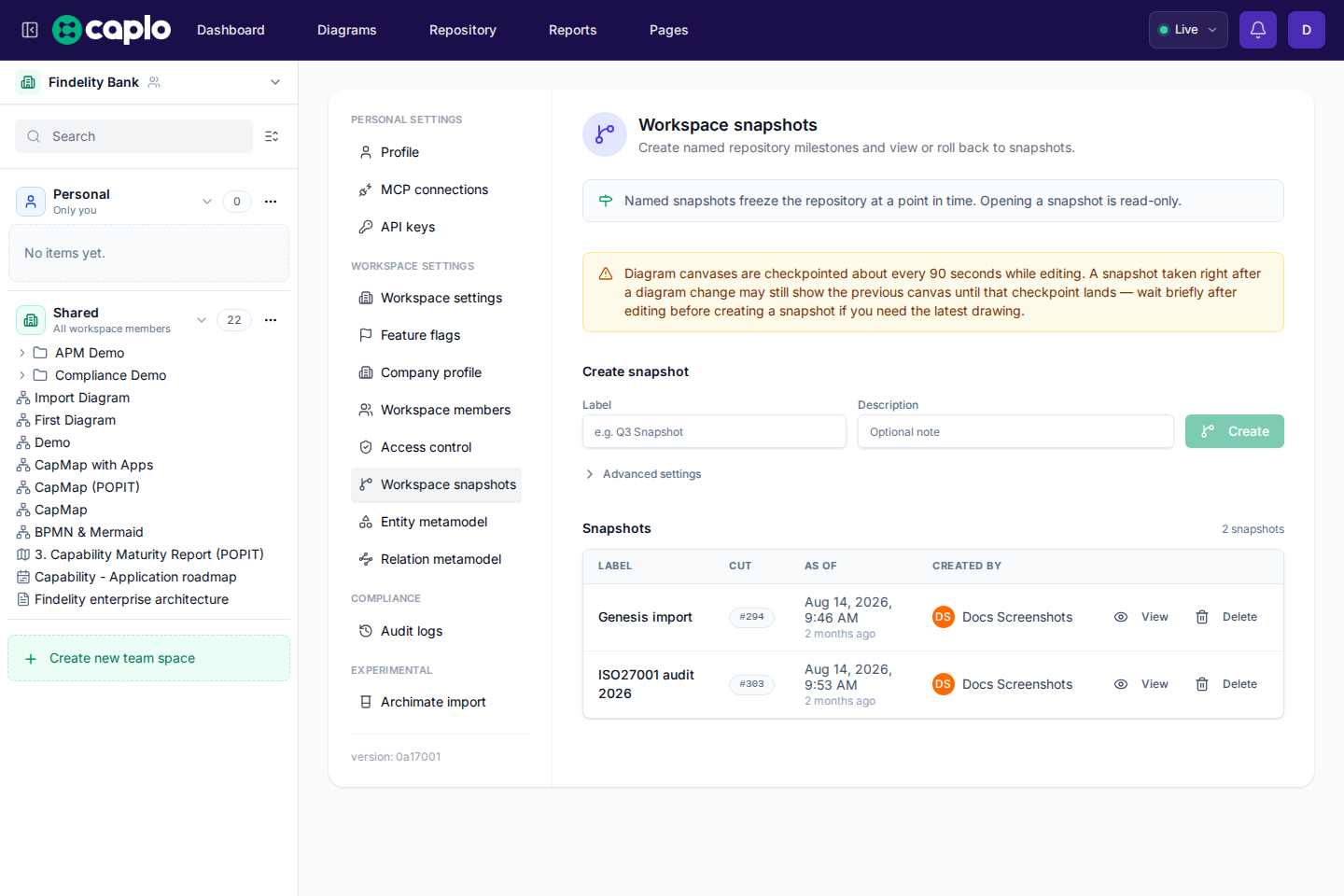
Create a snapshot
Workspace admins can create snapshots.
- Open Settings > Workspace snapshots.
- Enter a Label, such as
Q3 baseline. - Add a Description if you want.
- Click Create.
Leave As of empty to snapshot the current workspace. Open Advanced settings and pick a past time if you want an earlier moment.
View a snapshot
Workspace members can open snapshots read-only; creating and deleting stay with workspace admins.
View opens the workspace read-only as of that snapshot. A chip in the top navigation names the snapshot.
Open the chip to switch to another snapshot, choose Live workspace to return to the current workspace, or open Manage snapshots.
Viewing a snapshot does not change the live workspace. History View and Restore stay hidden while a snapshot is open. Return to the live workspace first, then restore that item from History.
Delete a snapshot
Deleting a snapshot removes the name from the list. Per-item History stays. Workspace admins can delete snapshots.
Practical notes
- Restore always adds a new version. It does not rewrite older History rows.
- Item ids stay the same, so diagrams and reports still point at the same objects.
- Diagram canvases are saved to History about every 90 seconds while you edit. Rename, folder, and privacy changes do not get their own History rows. Publishing a draft that changed a diagram adds a Published History row right away so you can view or restore that canvas. If you snapshot right after a live drawing change, the canvas may still be the previous one.
- BPMN also saves about every 90 seconds while you edit, and always saves when you close the editor or hide the tab.
If the snapshot needs the latest drawing, wait a few seconds after you finish editing, then create it.
History vs audit logs
History is what one item looked like and what changed on it.
Audit logs show who created, updated, or deleted items across the workspace. Open Settings > Audit logs for that activity trail.
Snapshot settings live under Settings and customization.
To try a change without updating the live workspace, use Drafts. Snapshots never include draft work.