Confluence integration
The Confluence integration lets you embed a shared Caplo diagram, repository view, report, or page directly inside a Confluence page. You pick the item once. Viewers sign in to Caplo inside the embed and see a read-only view of that item.
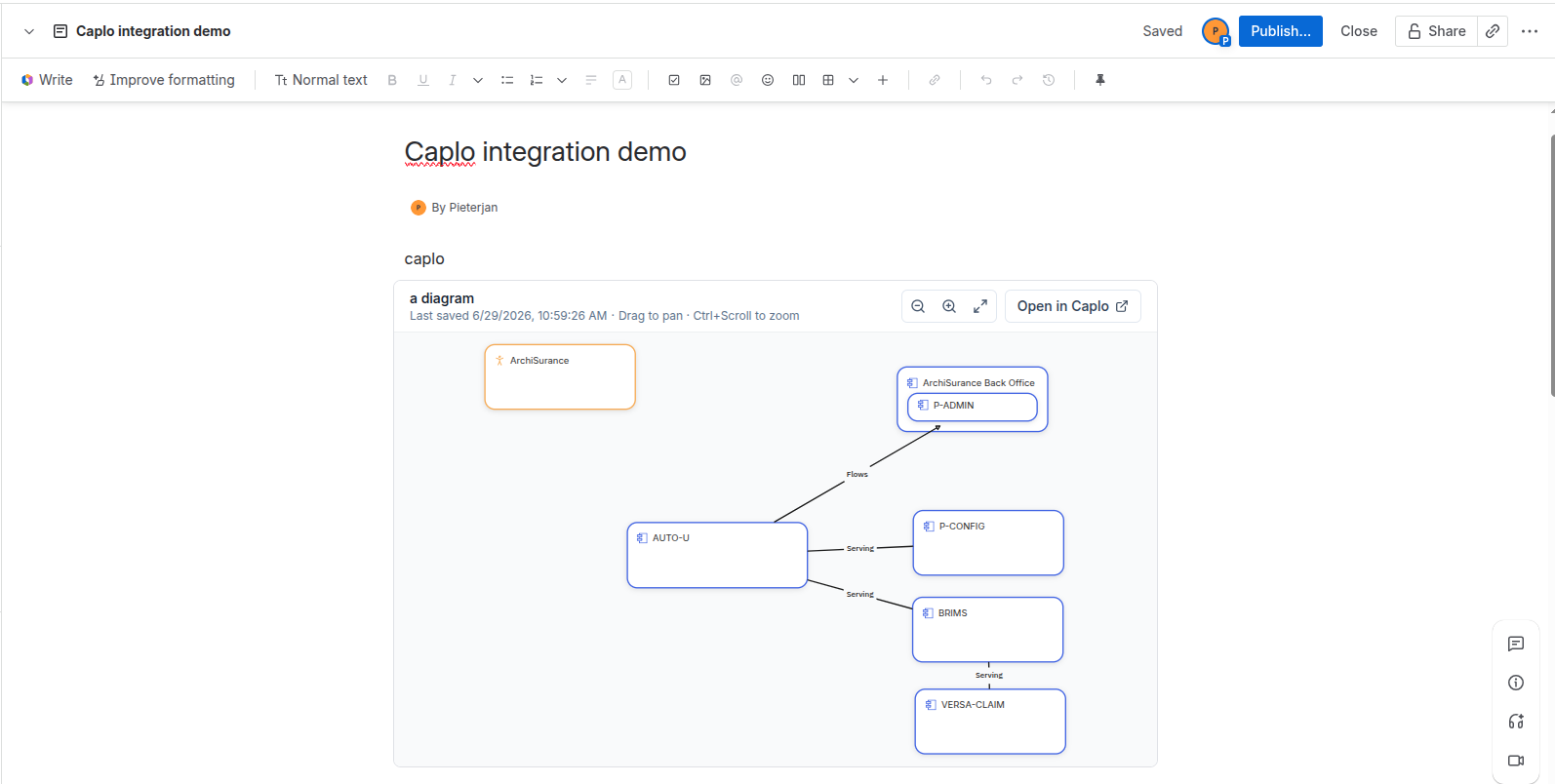
Install the app
The Caplo Confluence app is available free on the Atlassian Marketplace. Install it into your Confluence Cloud site from there (search for Caplo, or open the listing and choose Get it now).
You need permission to install apps on your Confluence site. If you do not, share the Marketplace link with your Confluence administrator.
Embed an item in a page
- Install the app from the Atlassian Marketplace.
- Edit the Confluence page where you want the item.
- Insert the Caplo macro (type
/caploin the editor, or pick it from the macro list). It starts at Wide width. Center and Full width are still on the editor toolbar, and a choice you make there is kept. - Sign in to Caplo inside the macro if prompted.
- Google or Microsoft: a small sign-in popup opens; complete the provider flow and the popup closes itself, returning you to the macro.
- Email / password: sign in directly inside the macro.
- Choose the workspace, then a shared diagram, repository view, report, or page.
- Save and publish the page.
Only shared items in the selected workspace can be embedded. Personal items are not listed in the picker. Drafts and built-in report templates are not listed either.
How it stays up to date
Refresh the Confluence page to pick up newer saves. You cannot edit the item from inside Confluence.
- A diagram shows the latest saved snapshot. Very recent edits appear after the diagram autosaves (usually within a few seconds). It is not a live collaborative canvas.
- A repository view uses the saved filters, columns, and entity types. The rows are the current approved entities when the page loads.
- A report uses the saved landscape, bar chart, or roadmap definition. The entities in it are current when the page loads.
- A page shows the latest saved page. Data the page script reads is current when the Confluence page loads.
Access and permissions
- Each viewer of the Confluence page signs in to Caplo inside the embed and only sees items they are allowed to see in Caplo.
- The embed respects your normal Caplo workspace permissions — installing the macro does not bypass them.
- If a viewer has no access to the workspace or the item, it will not load for them.
- If repository permissions limit which entities a viewer can see, the repository view or report says so.
Troubleshooting
Google or Microsoft sign-in does nothing
Social sign-in opens in a small popup window. If nothing opens, your browser likely blocked the popup — allow pop-ups for your Confluence site and try again. If the popup still does not appear, check that your Confluence admin has the latest Caplo app version from the Marketplace.
The embed does not load
Make sure the viewer is signed in to Caplo inside the embed and has access to the item's workspace.
My item is not in the picker
Only shared diagrams, repository views, reports, and pages are listed. Personal items, drafts, and built-in report templates are not. Move a personal item out of your personal space, or make sure it belongs to the workspace you selected.
I see an old version
Refresh the Confluence page. A diagram updates after it autosaves. A repository view or report keeps its saved layout and loads current entities. A page shows the latest saved HTML.