Entities and relations
Entities and relations are the foundation of Caplo. Diagrams and reports become more valuable when they reuse the same shared model instead of creating one-off labels.
Entity document
Every entity can have one written page. It opens first when you open the entity. Use it for prose that does not fit in properties, including custom ones, or in relations.
Entity documents covers editing, showing the page on a diagram, reviewing it in a draft, and reading it from MCP or the API.
Start from the meta model
Before you create a lot of repository data, agree on a workable subset of entity types, relation types, direction rules, and properties for your workspace.
Use Meta model as the source of truth for:
- enabled element types
- relation types
- canonical relation direction
- hierarchy
- entity and relation properties
This page focuses on how to work with entities and relations once that shared structure is in place.
Use entities for reusable things
Create an entity when the thing should be reused across diagrams, reports, or repository views.
Good candidates include applications, capabilities, processes, data objects, goals, vendors, and other items your team will refer to repeatedly.
If something only matters on one diagram, keep it as a diagram-only label, note, or draw-mode shape instead of turning it into repository data.
Use relations for reusable connections
Create a relation when the connection between two entities matters beyond one diagram.
Relations are what make reports, graph exploration, and dependency analysis useful. If the connection is only explanatory or temporary, keep it diagram-only.
For relation types, canonical direction, and property configuration, use Meta model.
Reuse before creating new items
Before creating a new entity or relation, check whether it already exists in the Repository or can be reused from a diagram.
This keeps names, properties, and usage counts consistent across the workspace and avoids slightly different duplicates that weaken reports.
If a property points at another entity you cannot access, Caplo keeps the stored reference and shows <no access> instead of the name. That hidden target is not removed when you edit unrelated fields.
Finding usage
From an entity detail page, you can see where an entity is used in diagrams and how it connects to other entities. This helps answer questions like:
- "Where is this application shown?"
- "Which capabilities does it support?"
- "What data does it exchange?"
- "Which diagrams need review if we change or retire it?"
From a relation detail page, you can see the two endpoints, the relation type and properties, and which diagrams show that relation as an arrow. Deleted From or To entities are labeled as deleted. From an entity detail Relations tab, use Properties in a relation row menu to open that page.
Graph visualization
The entity detail page includes a Relations tab with a graph visualization. Use it when a flat relation list is too hard to follow.
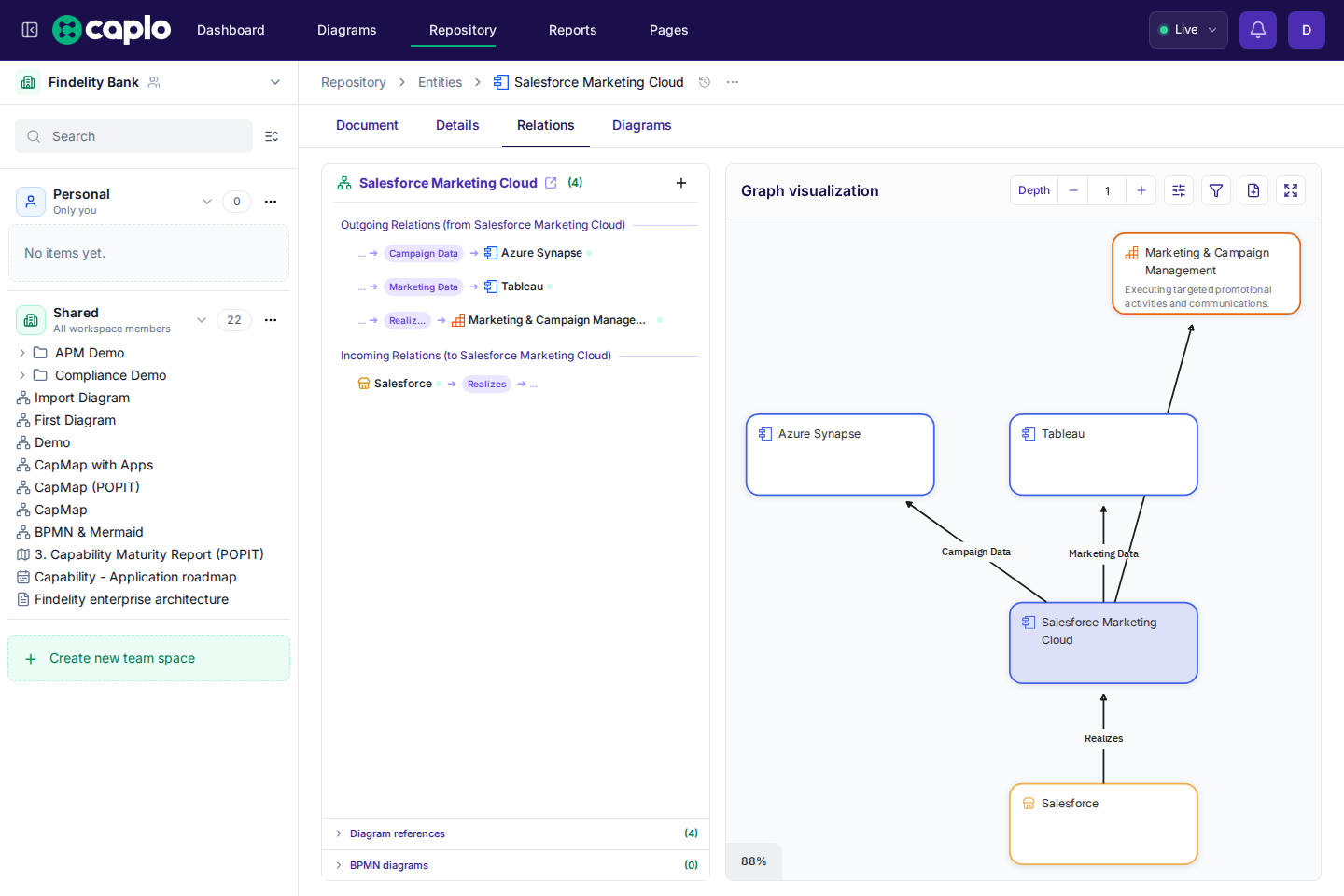
This is especially useful when you want to:
- trace what sits upstream or downstream of an application, capability, process, or data object
- inspect one or more hops away from the selected entity
- focus on specific relation types
- spot missing structure, unexpected dependencies, or over-connected parts of the model
- turn the explored subgraph into a diagram for further discussion
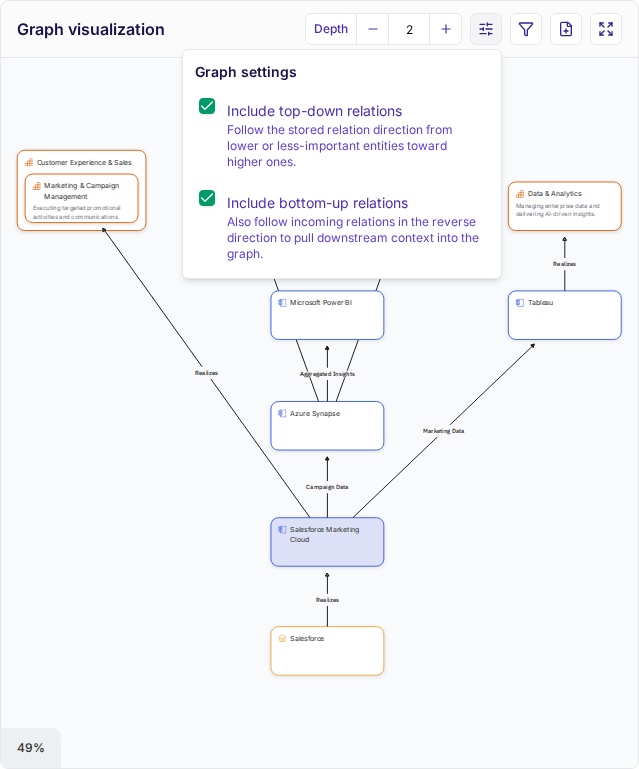
Use the Depth control on the graph to include nearby connections. The graph opens at depth 1. Graph settings adjusts direction. Filtering visible relation types is also possible from Filter graph.
The graph can include derived relations from Mermaid and BPMN diagrams on your canvas, not only direct repository relations you created manually. These appear when diagram elements are linked to repository entities and Caplo can derive connections from that diagram content.
You can create a new diagram directly from the graph visualization when the explored subgraph is worth keeping or discussing further. Child of links that the graph draws as nested cards stay nested on that diagram, using the same layout binding diagrams use for containment. On the live workspace and in a Personal draft that diagram is Personal. Inside a Shared draft it is Shared, because a Shared draft cannot hold Personal items.